1. Discount Setup Guide
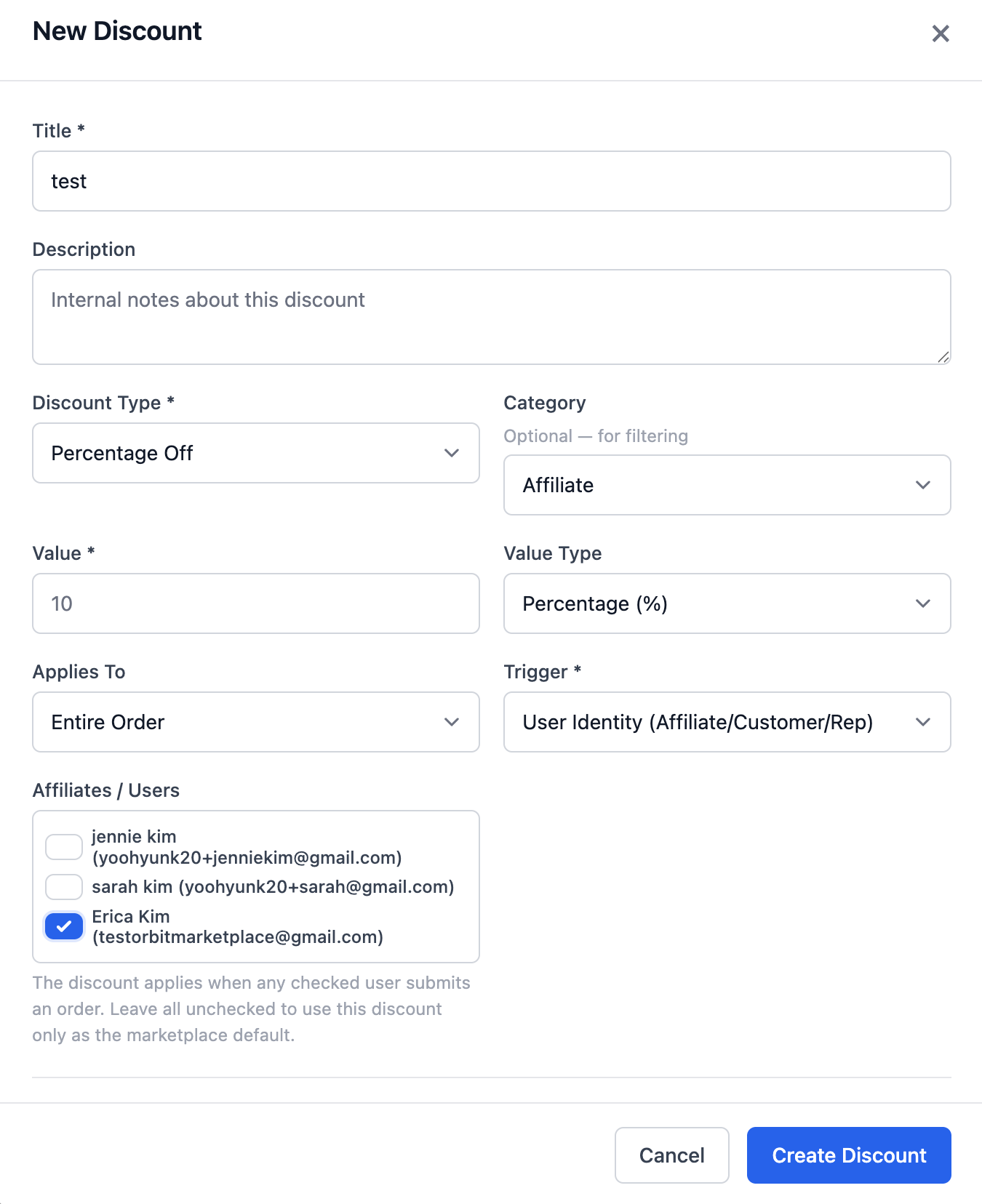
Creating a Discount
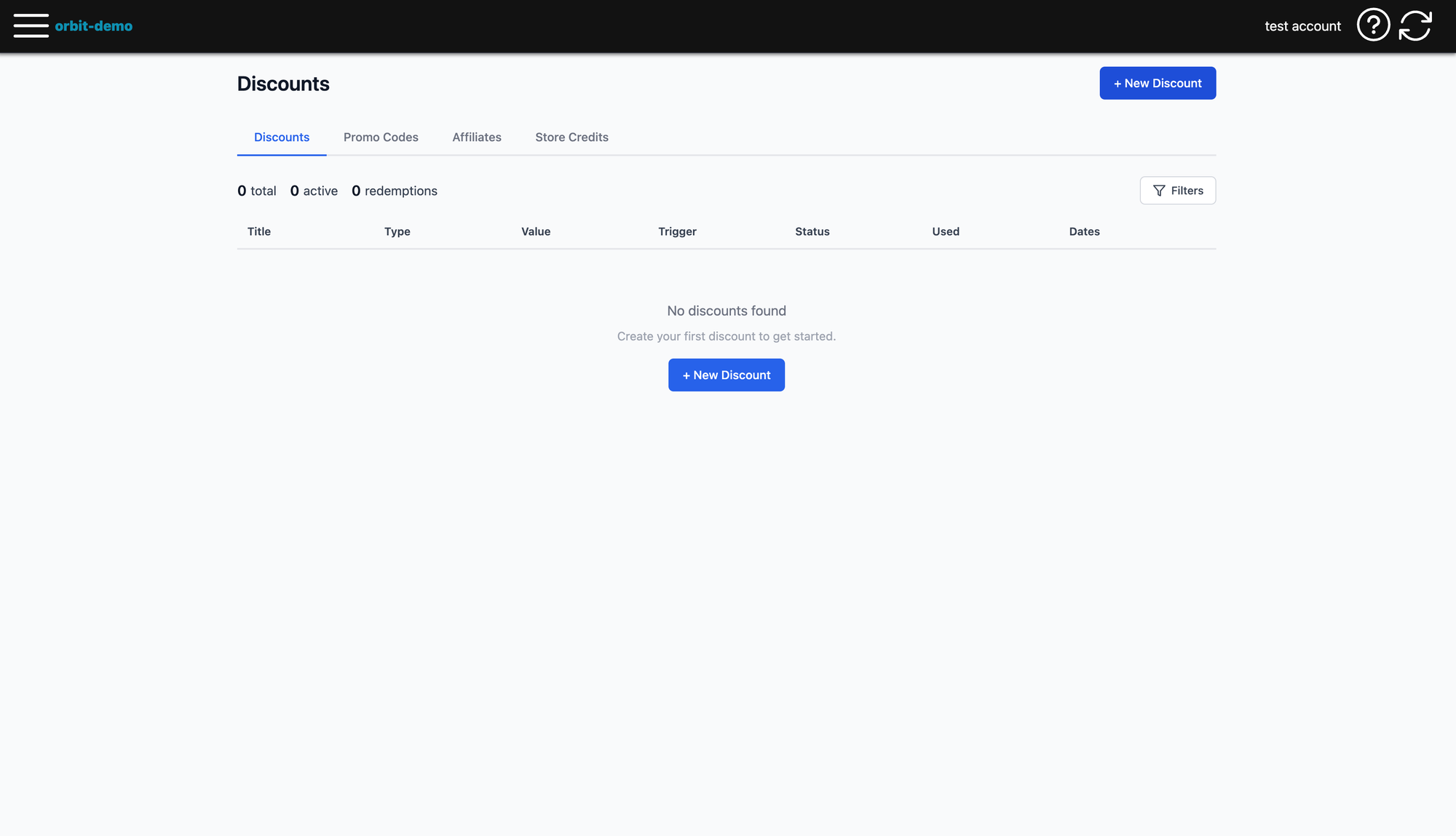
- Go to Menu → Discounts
- Click "Create New Discount"
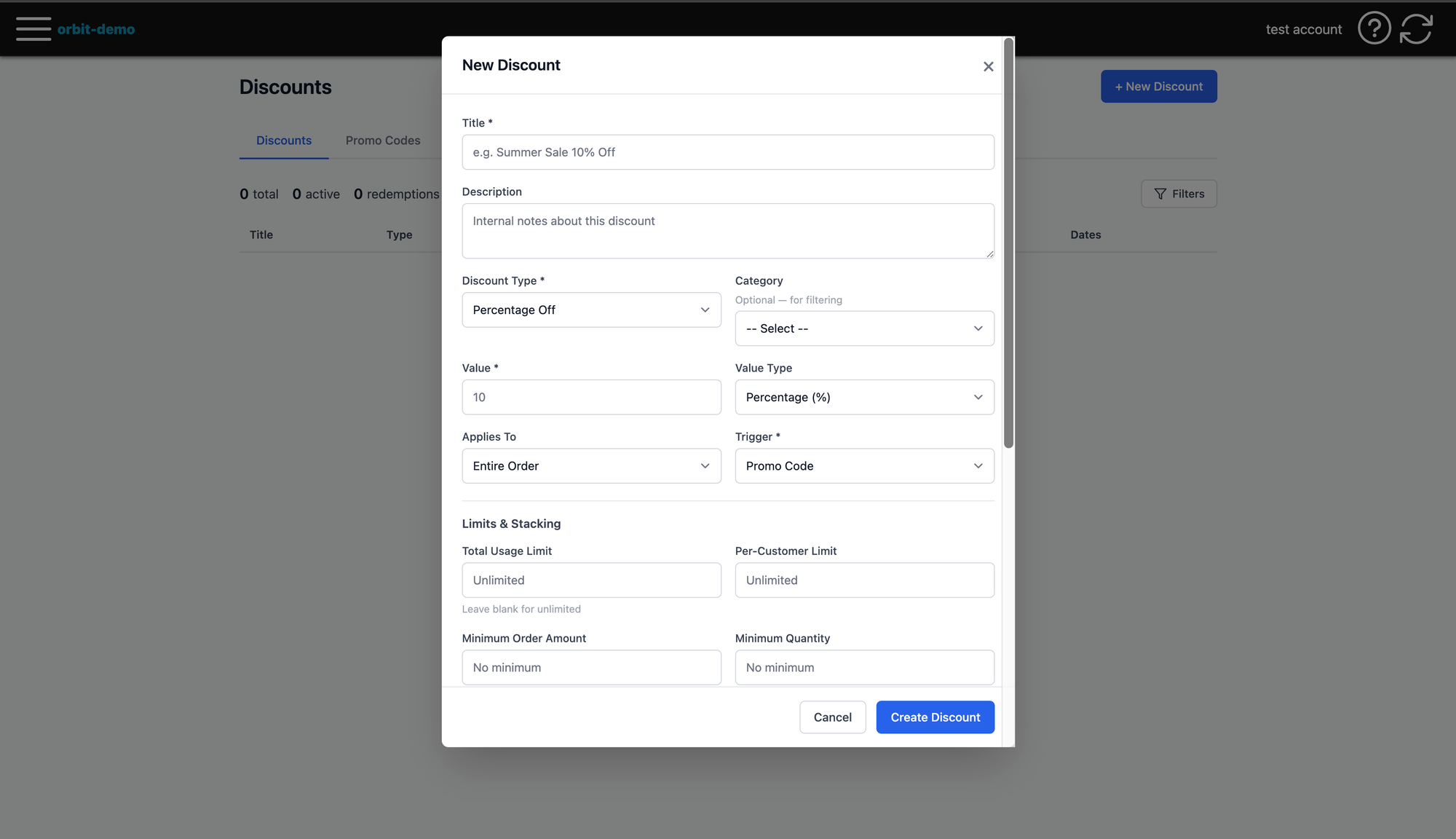
- Fill in:
- Title: Name for this discount (e.g. "Standard 10% Off")
- Discount Type: Percentage or Fixed Amount
- Value: The discount amount (e.g. 10 for 10%)
- Trigger Type:
- Affiliate Default — applies to all affiliates automatically (used as default in Marketplace Settings)
- User Identity — applies only to specific affiliates you select
- Promo Code — customer enters a code at checkout
- Wholesale — applies to B2B wholesale customers
- Click Save
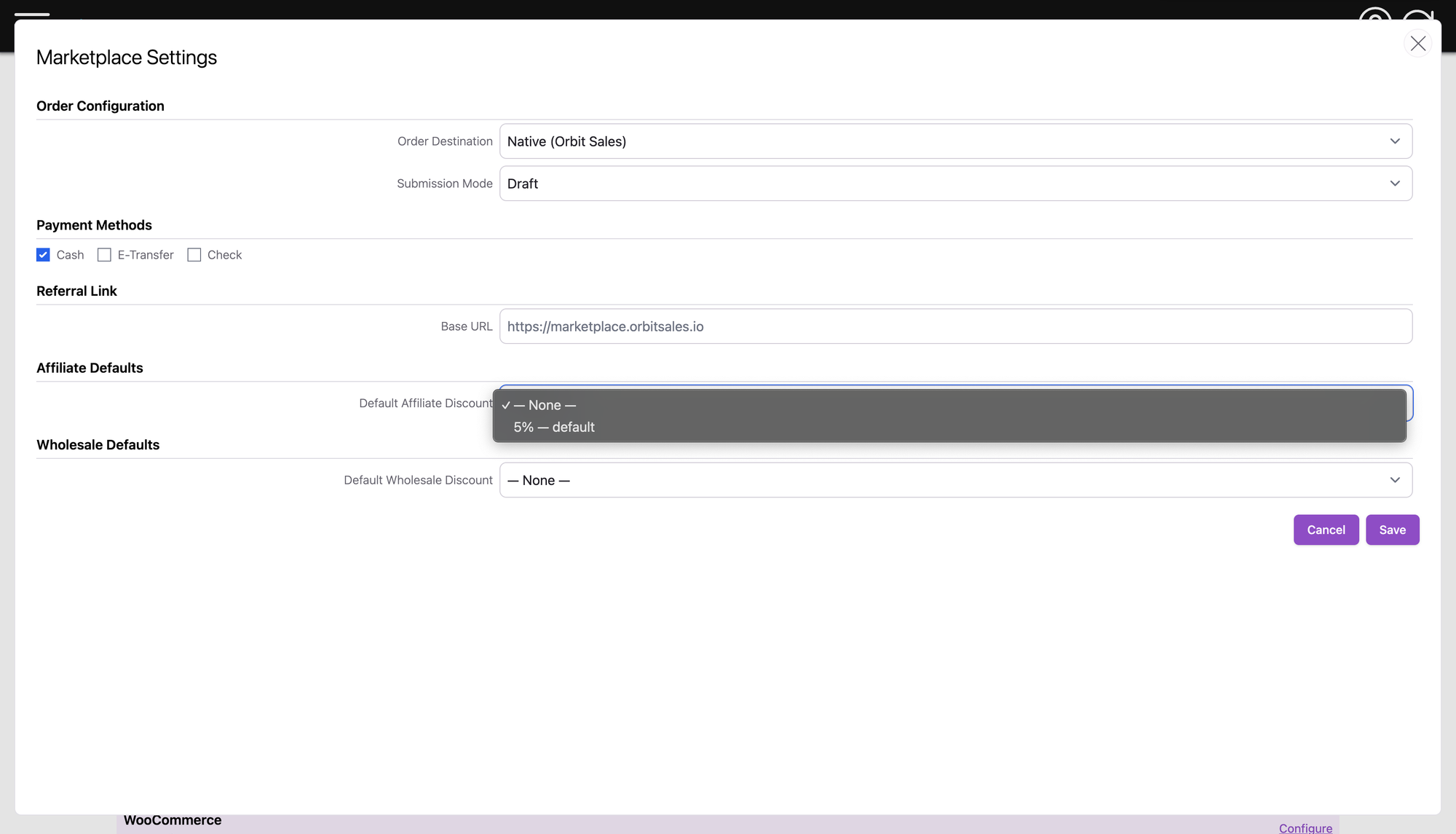
Setting a Default Affiliate Discount
- Find "Default Affiliate Discount" dropdown
- Select the discount you created
- Click Save
- Every new affiliate will automatically receive this discount
Go to Settings or Menu → Marketplace Settings
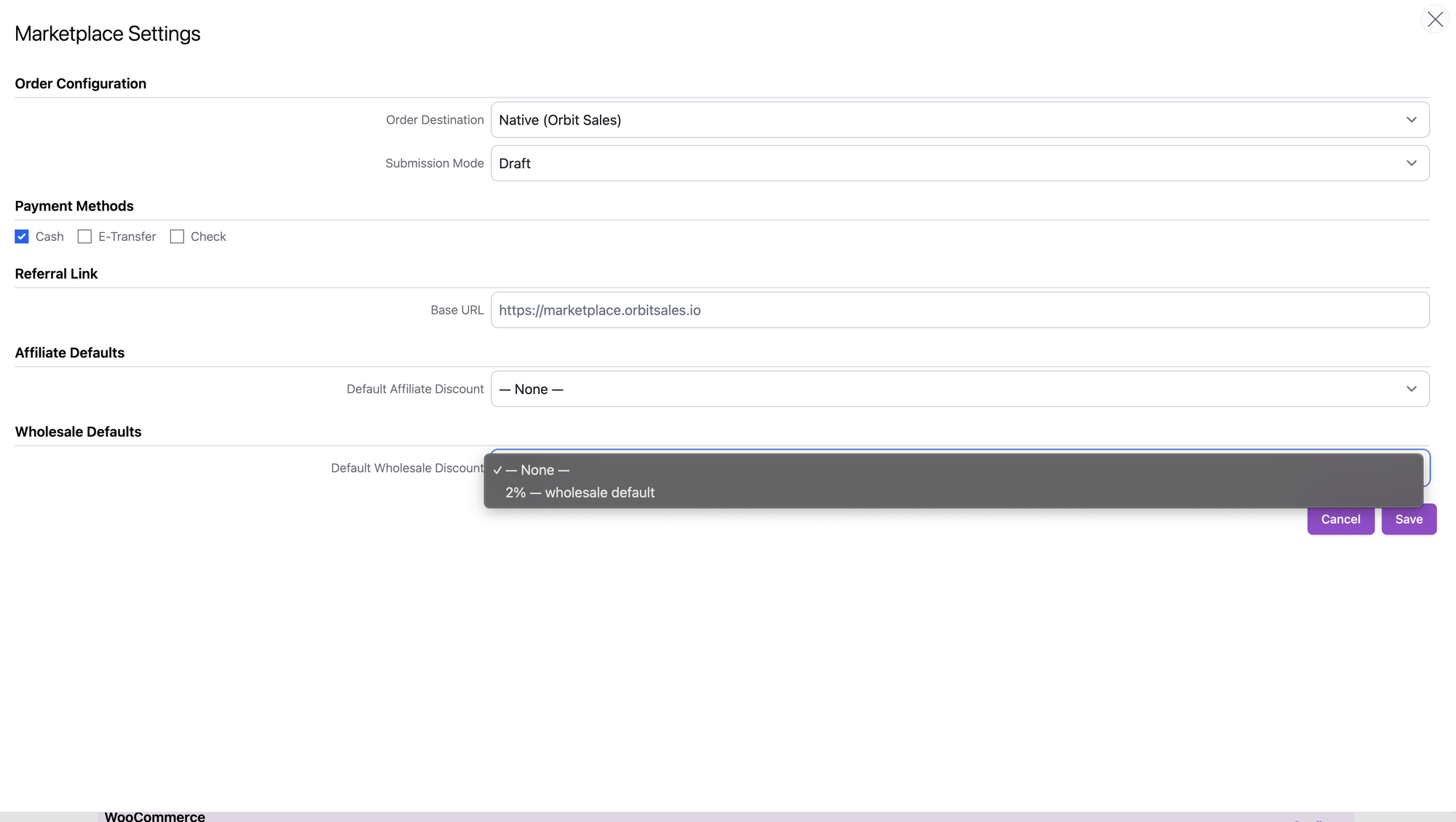
Setting a Default Wholesale Discount
- Go to Settings → Marketplace Settings
- Find "Default Wholesale Discount" dropdown
- Select a wholesale discount
- Click Save
- Every new B2B customer will automatically receive this discount
Giving a Specific Affiliate a Different Discount
If you want one affiliate to have a special deal instead of the default:
- Go to Settings → Discounts
- Create a new discount (or edit an existing one)
- Set Trigger Type to "User Identity"
- Select the affiliate from the dropdown
- Save — this affiliate now uses this discount instead of the default
Setting Up Commission for an Affiliate
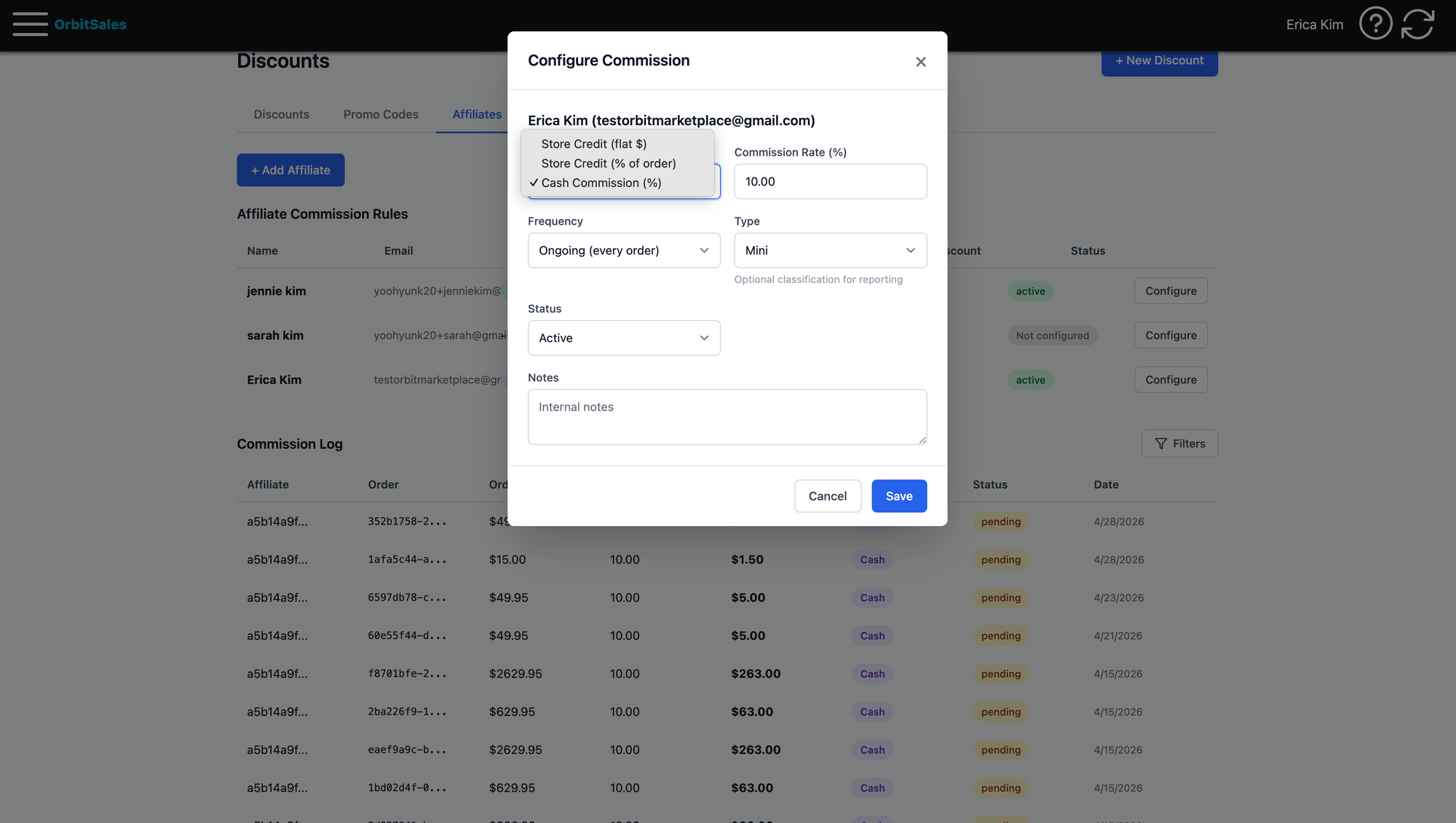
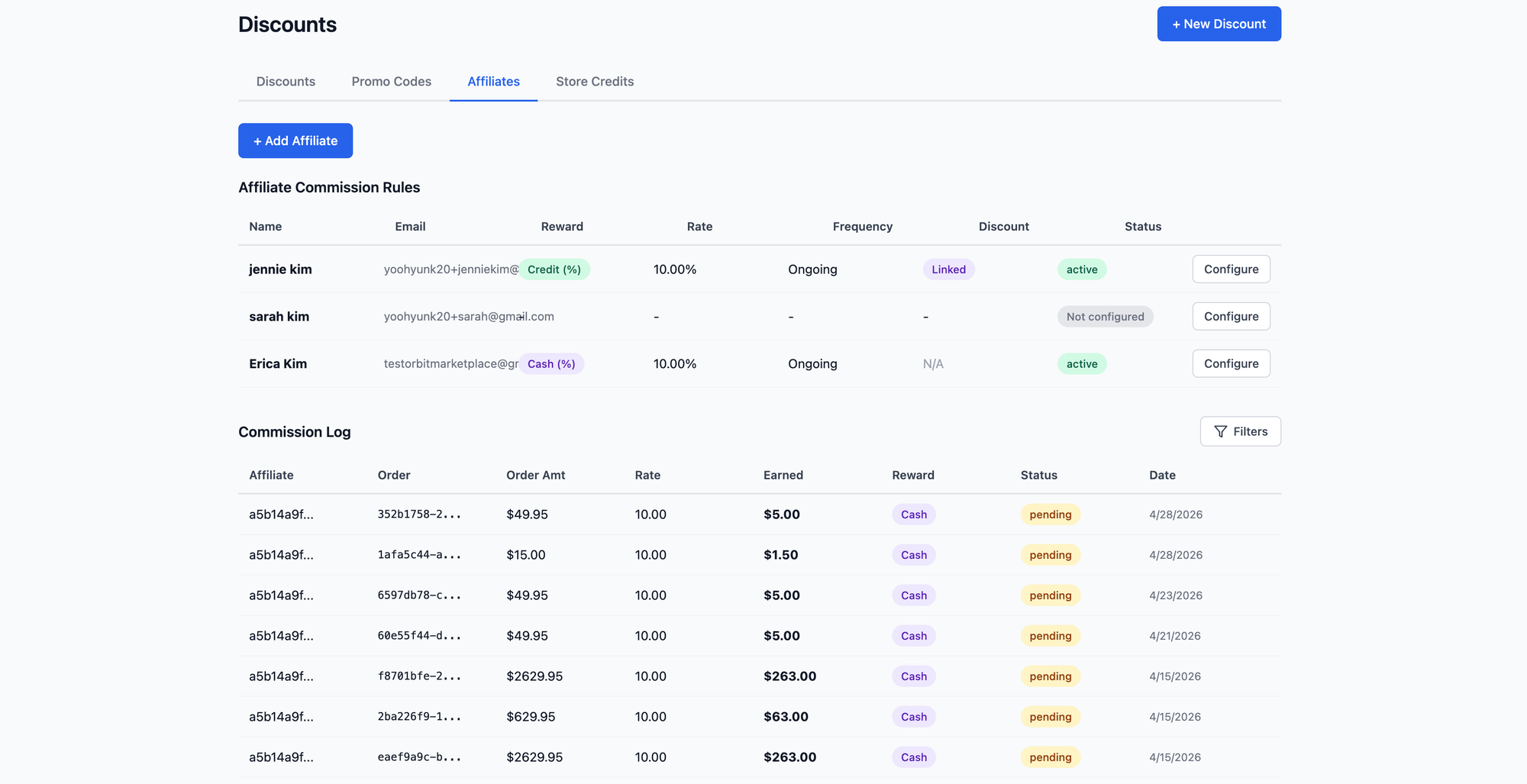
- Go to Settings → Discounts → Affiliate tab
- Click "Configure" on affiliate you want to set commission
- Set commission type:
- Percentage Cash — affiliate earns % of each order in cash
- Percentage Credit — affiliate earns % as store credit
- Flat Credit — affiliate earns a fixed amount per order as store credit
- Save
2. Affiliate Setup Guide
Adding a New Affiliate
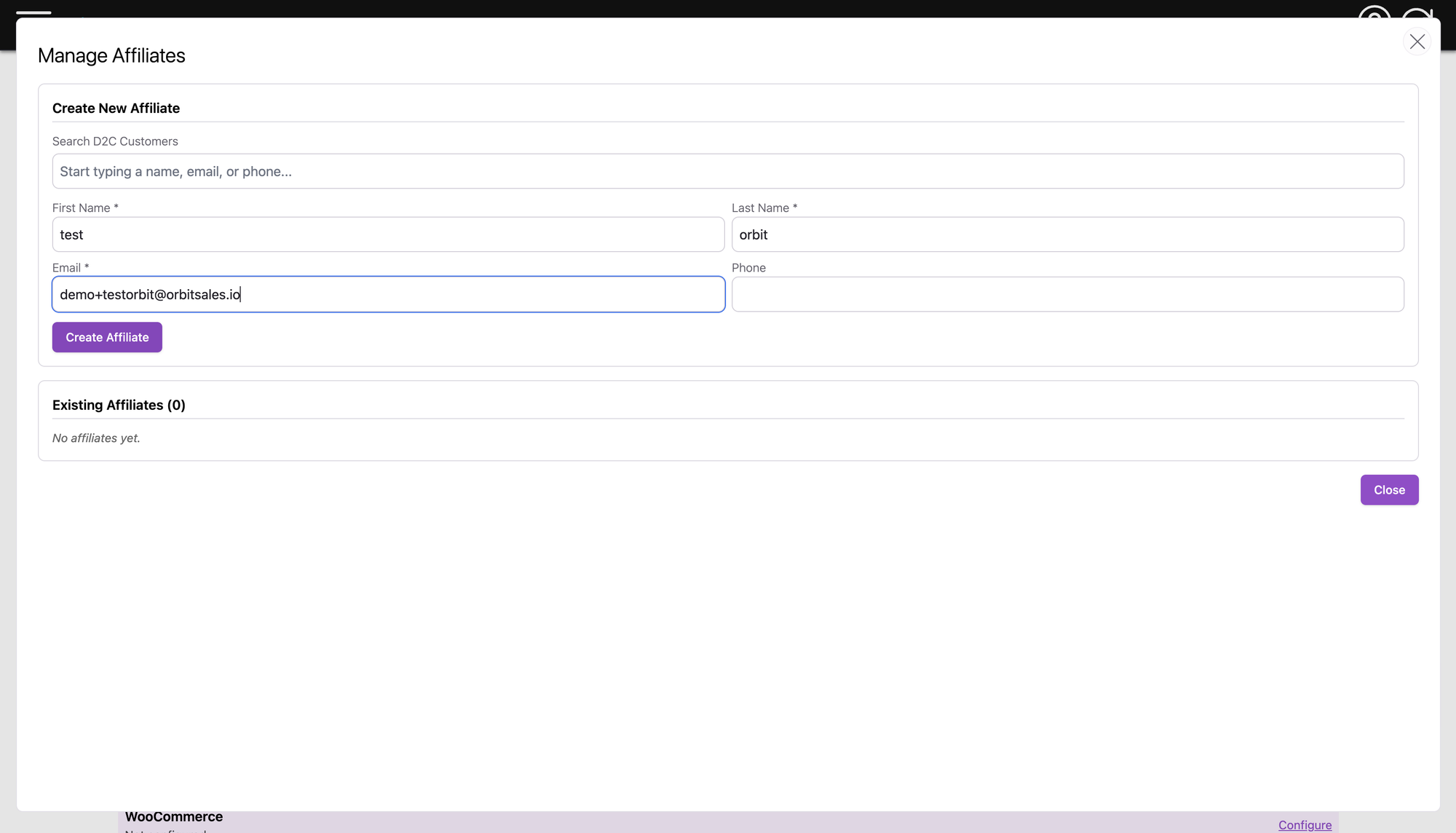
- Go to Settings → Manage Affiliates
- Click "Add Affiliate"
- Enter:
- First Name
- Last Name
- Phone Number
- Click Create
What happens automatically:
- Affiliate receives a setup email
- An Outseta account is created (UserType: Affiliate)
- A referral code and link are generated
- The default affiliate discount is linked to them (if configured)
What the Affiliate Sees
After setting up their password via email, the affiliate logs into marketplace.orbitsales.io and sees:
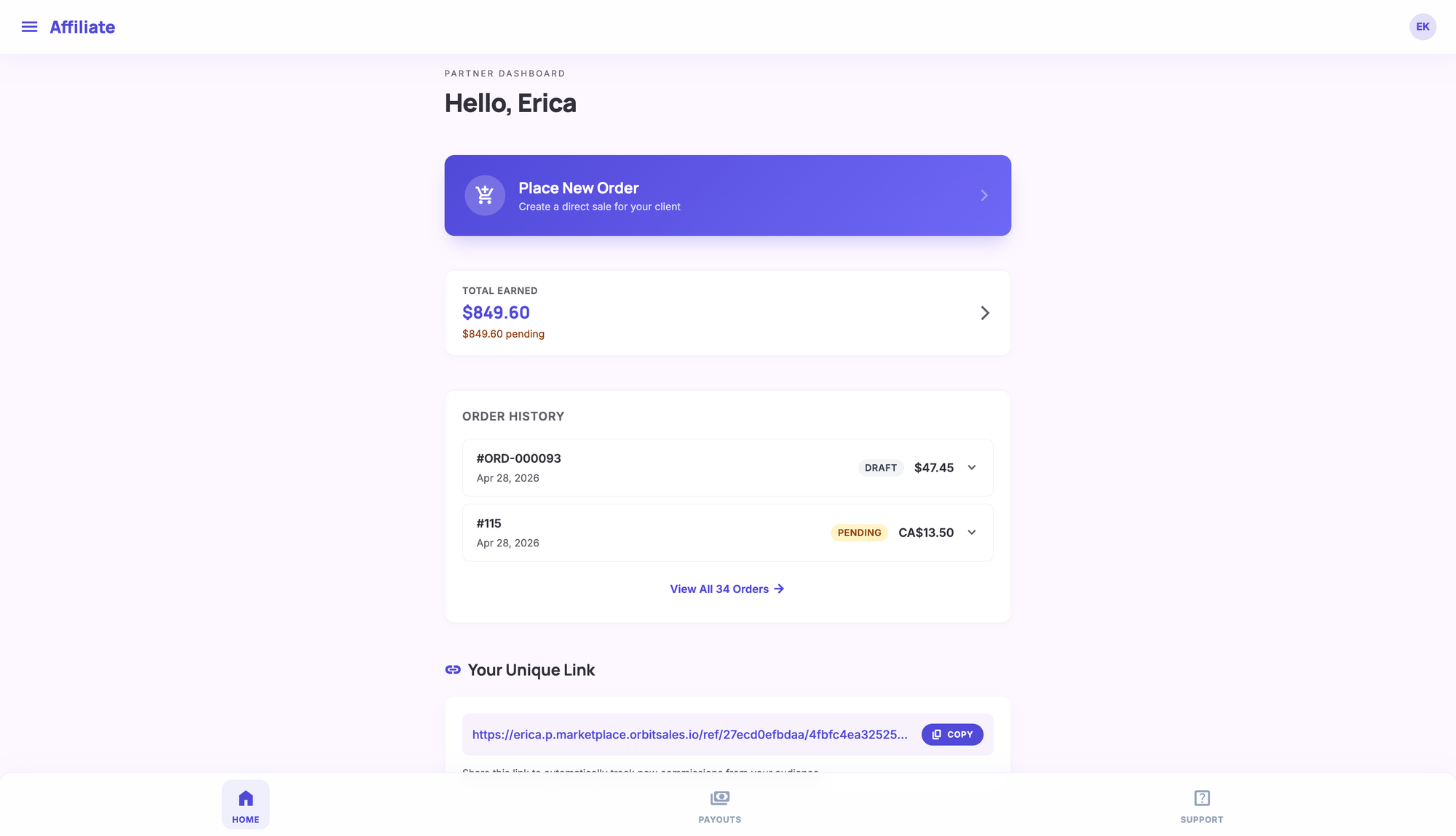
- Home Page: QR code, referral link, "Share with your network" button, "Place New Order" button
- Orders Tab: List of all orders they've placed, with status and totals
- Payouts Tab: Commission history — earned, pending, paid amounts
How Affiliates Share Their Link
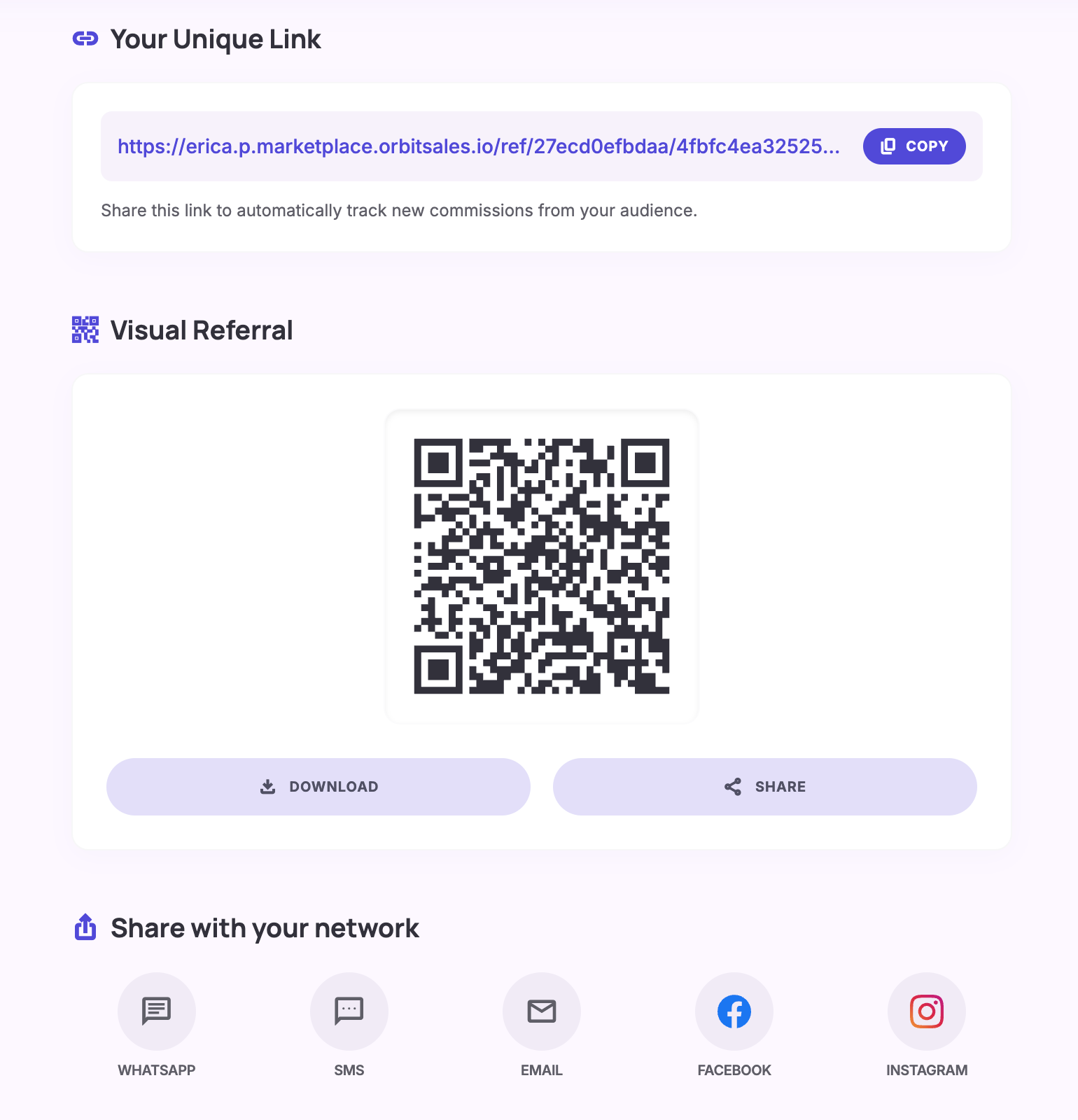
- On Mobile: Tap "Share with your network" → phone's native share sheet opens (Facebook, WhatsApp, Instagram, text, etc.)
- On Desktop: Social share icons appear (Facebook, Twitter, WhatsApp, Email)
What Happens When a Customer Uses the Shared Link
- Customer opens the affiliate's referral link
- They see the public order form — no account needed
- The affiliate's discount is automatically applied
- Customer fills in name, email, phone, shipping address
- Customer selects products and submits the order
- Both the customer and the store owner receive email confirmation
- The affiliate earns commission (if configured)
Viewing Affiliate Performance
- Orders Tab: See all orders this affiliate generated
- Discount>Affiliate: See all commission logs
- Payouts Tab: See total earned, pending payout, commission history with Credit/Cash badges
3. B2B / Wholesale Setup Guide
Adding a New B2B Customer
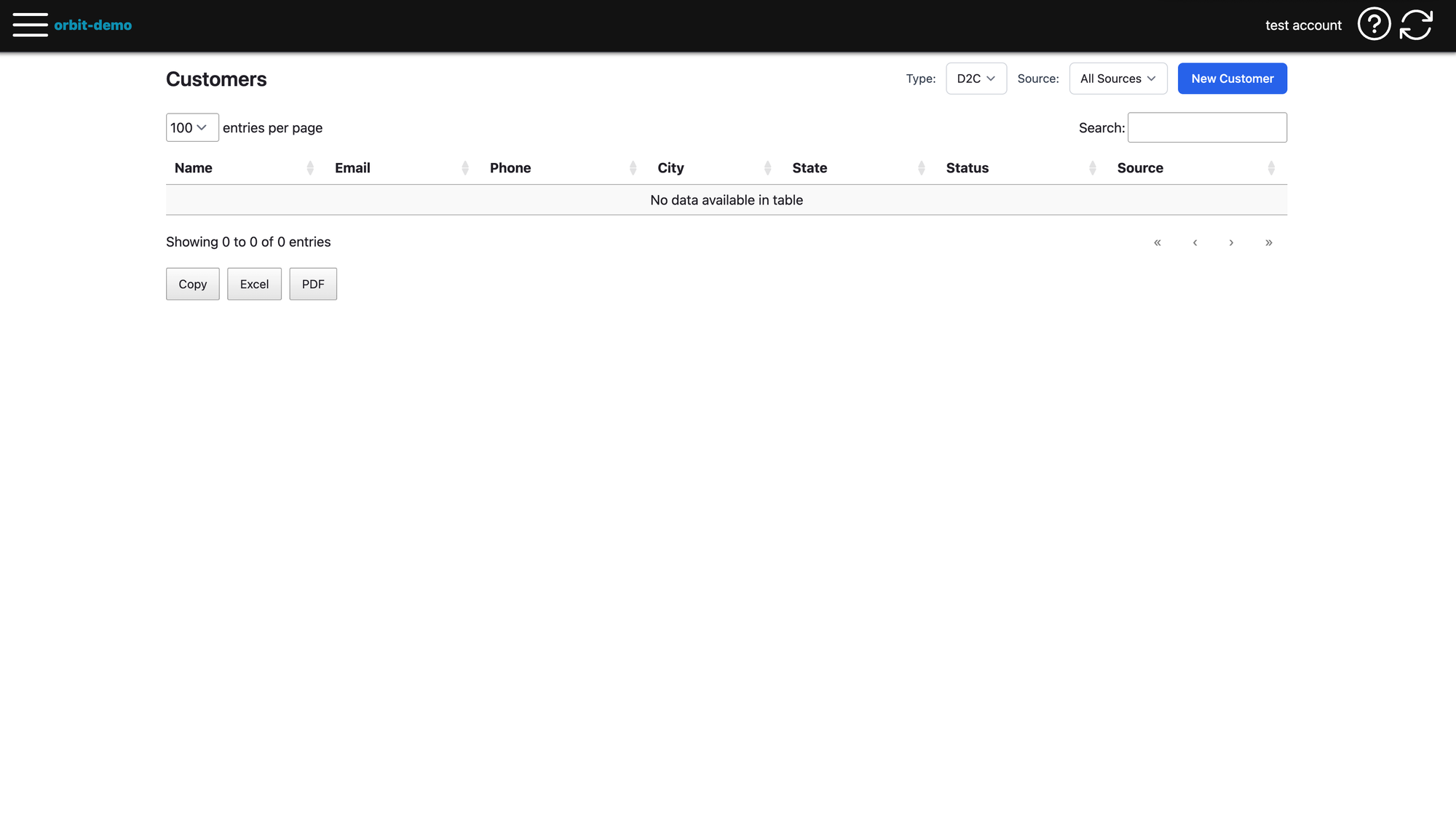
- Go to Customers → New Customer
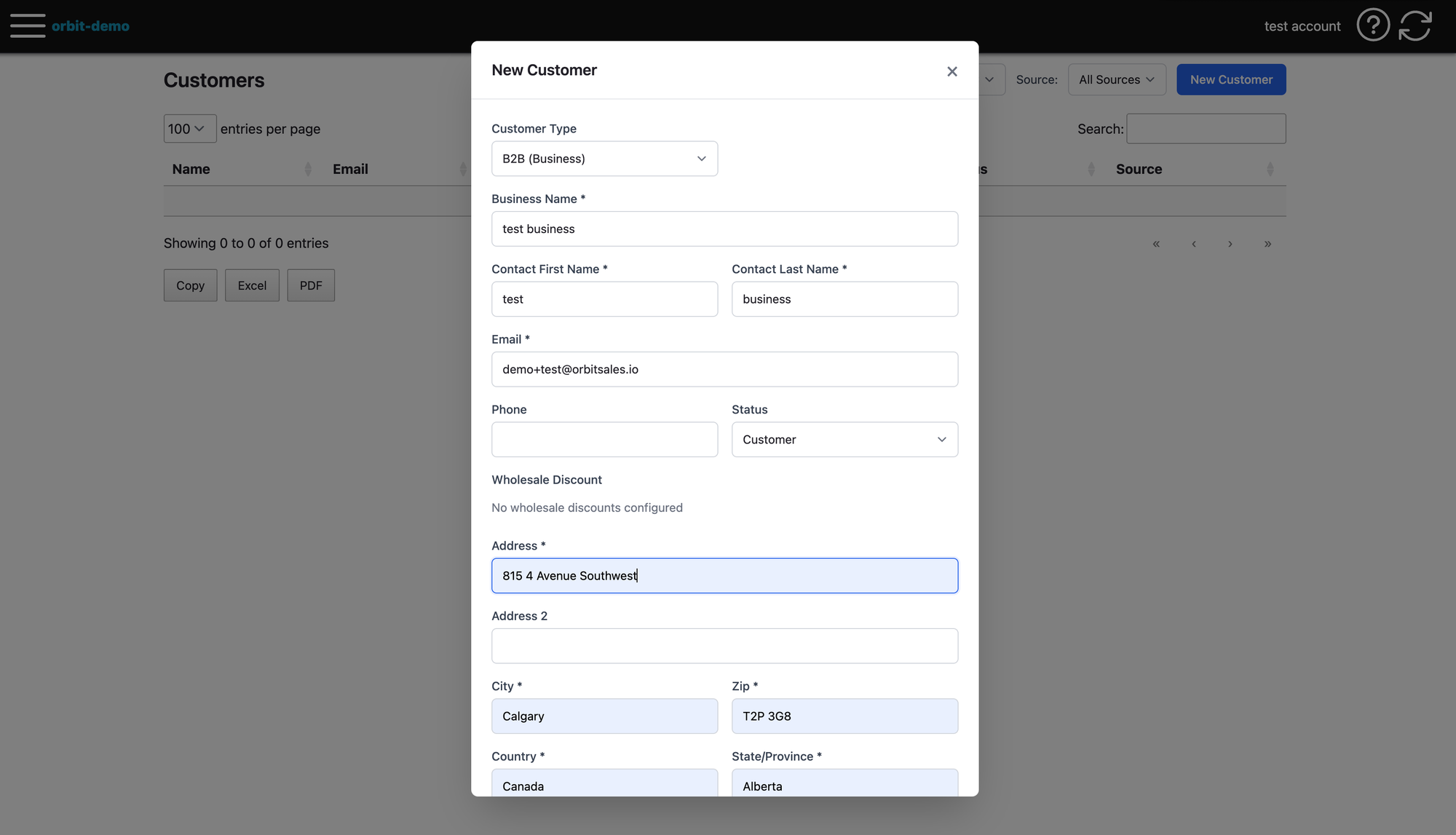
- Set Type to "Customer" (B2B)
- Enter:
- Business Name
- Contact First/Last Name
- Phone Number
- Select a Wholesale Discount from the dropdown (default is pre-selected if configured)
- Click Save
What happens automatically:
- B2B customer receives a setup email
- An Outseta account is created (UserType: Customer)
- A marketplace login is created
- The selected wholesale discount is linked via wholesale_customizations table
- customer_identity is created/linked for cross-system tracking
What the B2B Customer Sees on Marketplace
After setting up their password, the B2B customer logs into marketplace.orbitsales.io and sees:
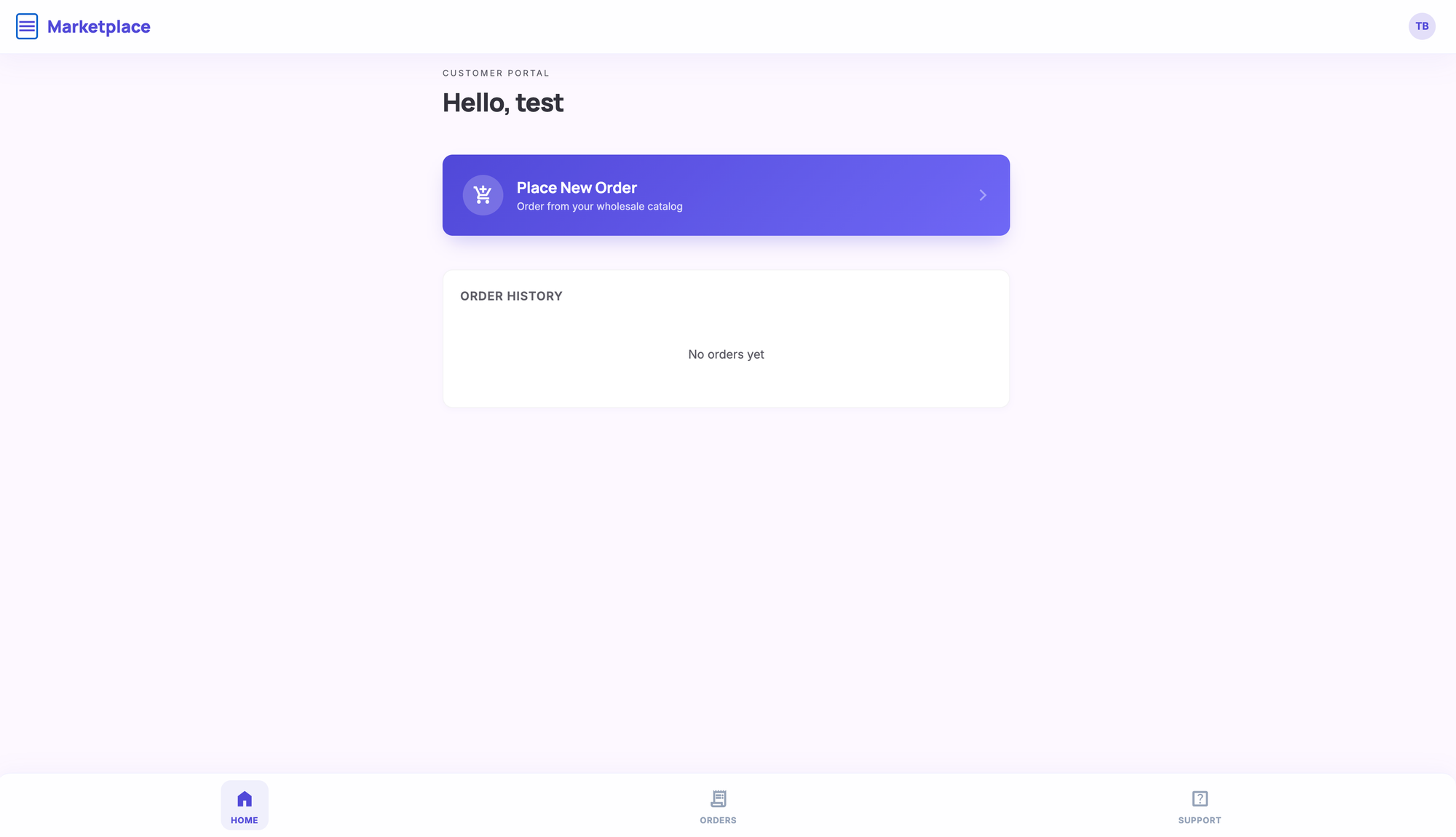
- Home Page: "Place New Order" button — no QR code, no share links (those are affiliate-only)
- Order Form: Products available to them (filtered by their custom product list if configured), with wholesale discount applied automatically
- Orders Tab: List of all their past orders
Setting Up a Custom Product List
To limit which products a B2B customer can see and order:
- Go to the customer's Store Detail page
- Find the "Wholesale Customization" section
- Check the products this customer should have access to
- Save
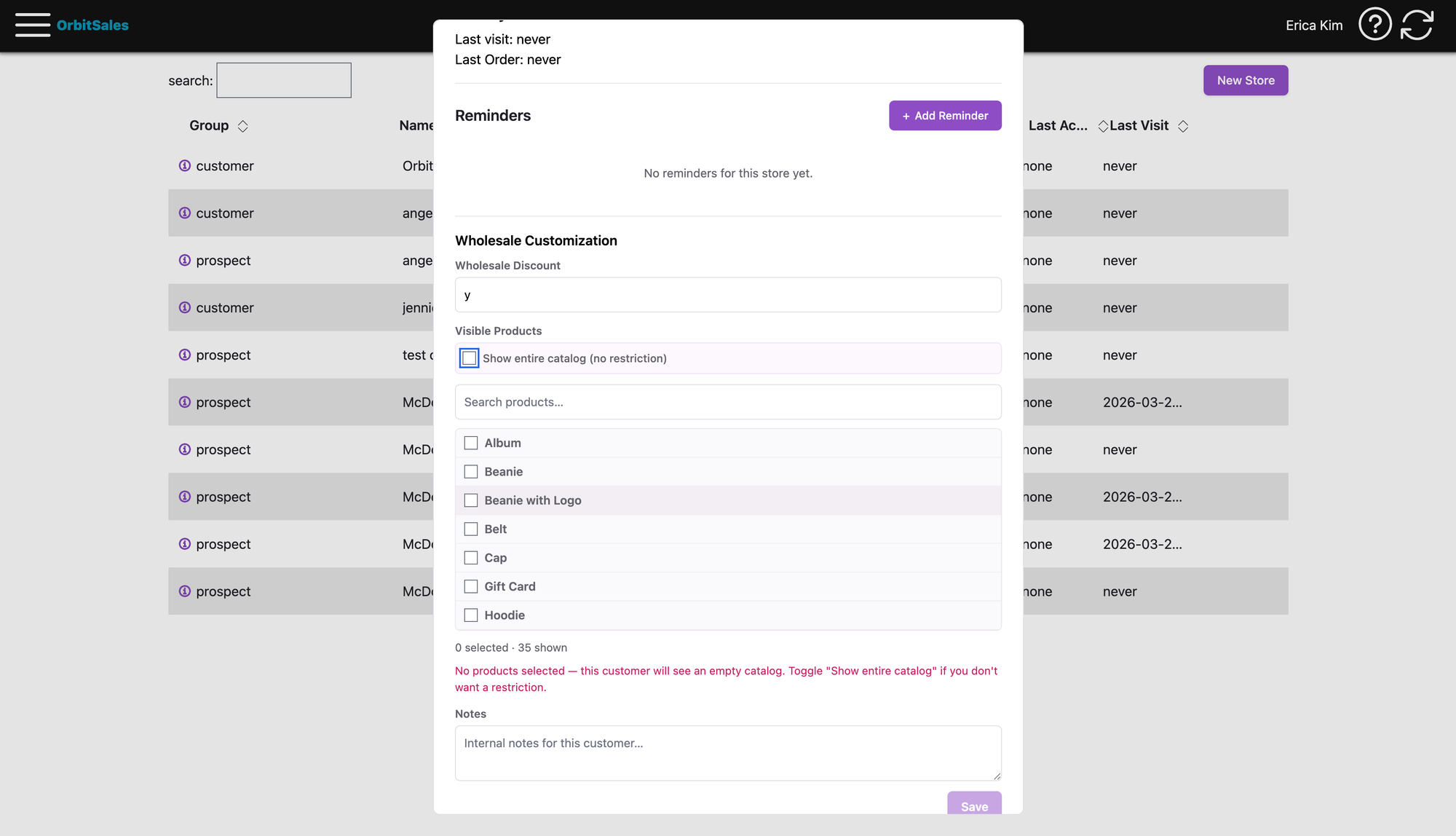
If no products are assigned, the customer sees: "Contact your rep to set up your catalog."
Placing an Order for a B2B Customer (Admin)
Store owners can also place orders on behalf of B2B customers:
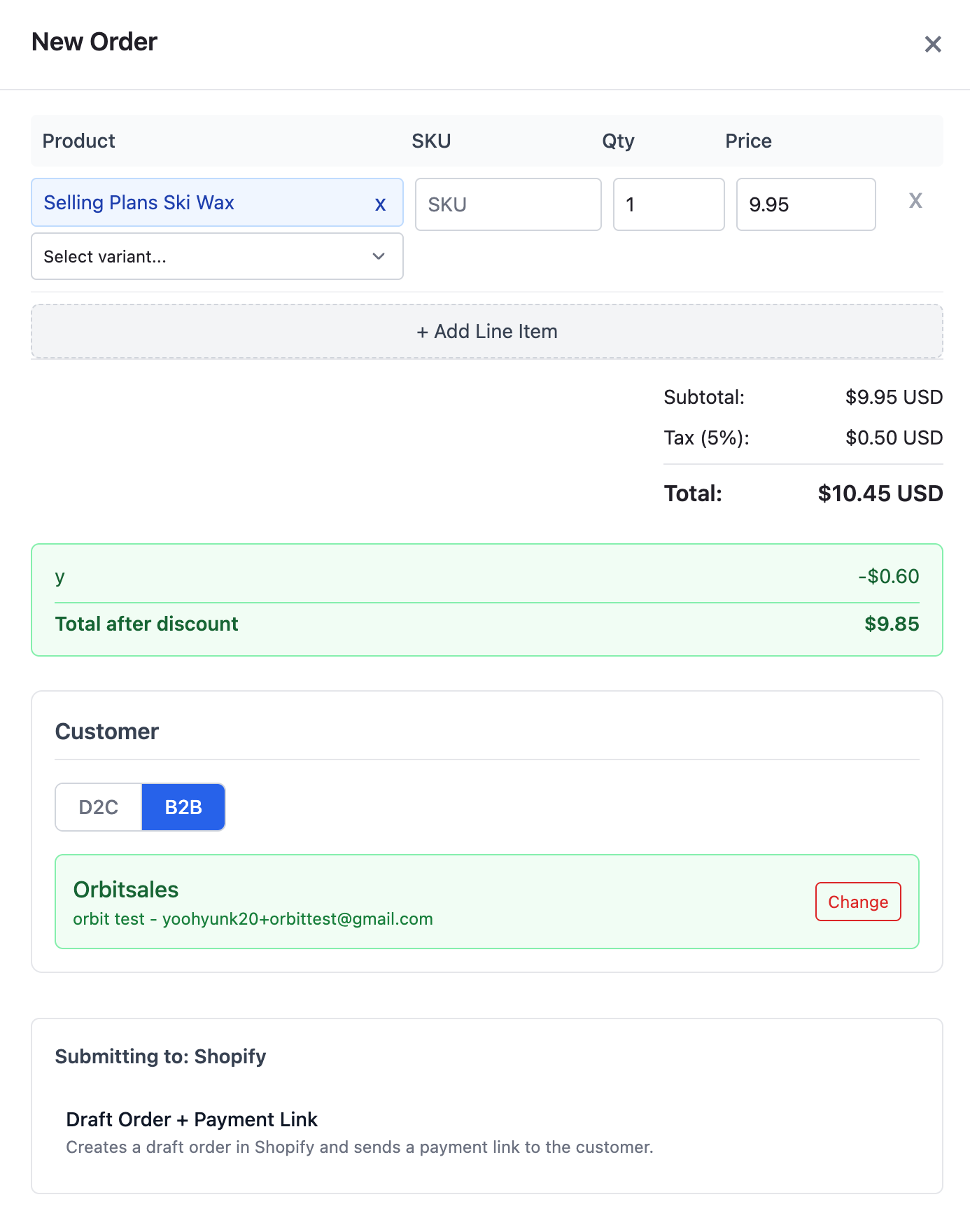
- Go to Orders → New Order or Store Details → Order Now
- Select the B2B customer
- All products are visible (admin is not filtered by custom product list)
- The customer's wholesale discount is automatically applied
- Submit the order
B2B vs Affiliate — Quick Comparison
| Feature | Affiliate | B2B Customer |
|---|---|---|
| Referral link / QR code | Yes | No |
| Share button | Yes | No |
| Commission / Payouts | Yes | No |
| Wholesale discount | No | Yes |
| Custom product list | No | Yes |
| Order history | Yes | Yes |
| Place orders on marketplace | Yes | Yes |
| Admin can order on their behalf | Yes | Yes |
Quick Reference
Where to Find Things
| Task | Location |
|---|---|
| Create a discount | Settings → Discounts |
| Set default affiliate discount | Settings → Marketplace Settings |
| Set default wholesale discount | Settings → Marketplace Settings |
| Add an affiliate | Settings → Manage Affiliates |
| Add a B2B customer | Customers → Add Customer (type: Customer) |
| View affiliate commissions | Settings → Discounts → Commission tab |
| Assign products to B2B customer | Store Detail → Wholesale Customization |
| View order history | Orders page, or Marketplace → Orders tab |